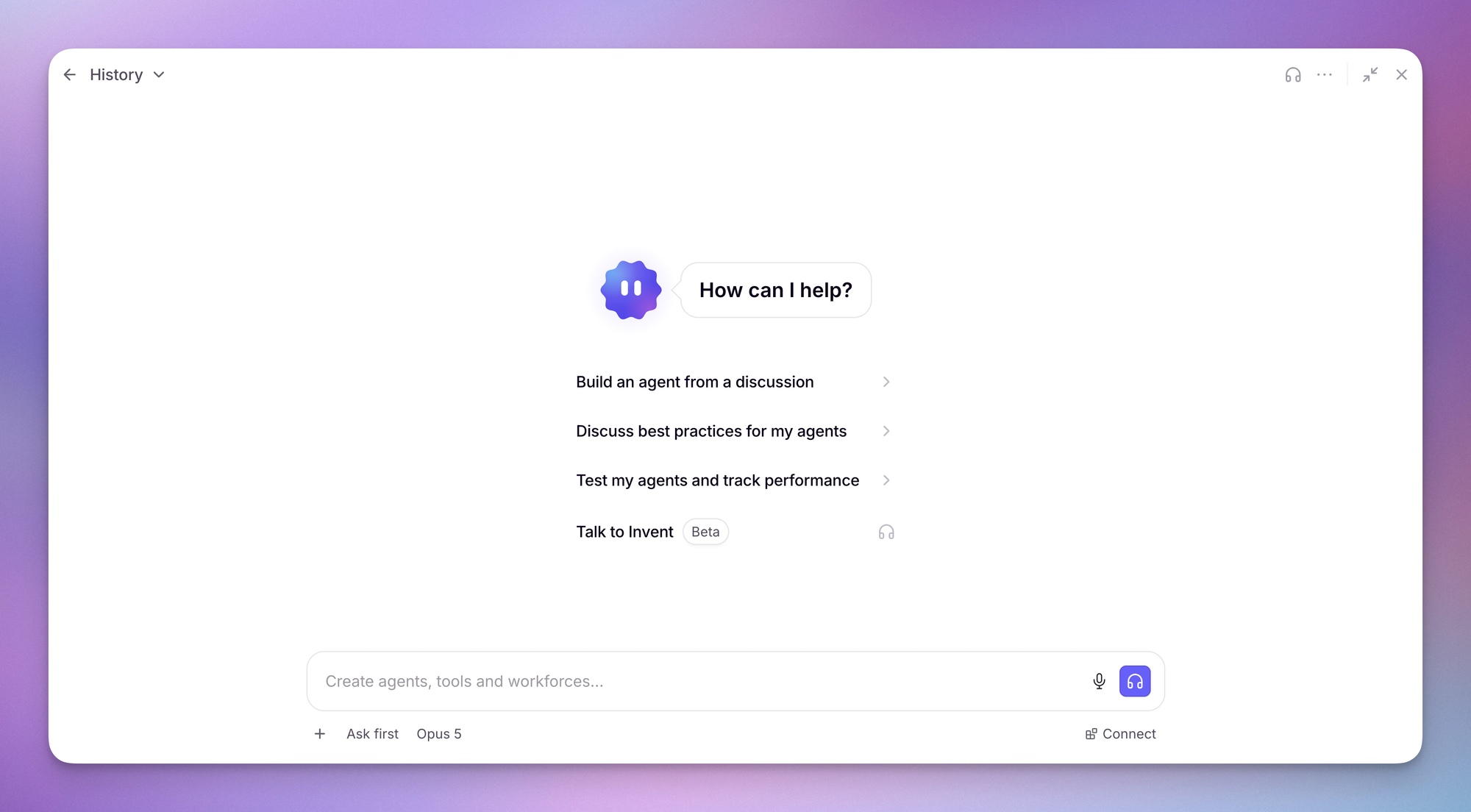
Meet your personal forward deployed agent built into Relevance AI.
Invent is a forward deployed AI Agent built into Relevance AI. You say how the work should run, and Invent builds and manages the Agent team that does it. It works across your entire project rather than inside any one Agent or Tool, so it can create, edit, and understand almost anything in the platform.
Each area below is something Invent can reach directly. In all of them it acts with your own permissions, inside the project you have open.
Agents
Invent builds and runs your Agents end to end.
Create, update, publish, and delete an Agent
Read, search, and edit its system prompt
Attach and detach the Tools it can use
Trigger a run and poll the result
Read a task's summary, messages, and metadata
Cancel a running task
Tools
Invent assembles Tools a step at a time, or starts from one that already exists.
Create, update, publish, delete, and bulk delete Tools
Add, update, reorder, and remove steps
Set what the Tool returns
Trigger a run, poll the result, and cancel one mid-flight
Read the latest run or look back through previous runs
Search and clone public Tools and Marketplace listings
Browse the Tool step library, check what a step needs, and build a Tool from one
Workforces
Invent wires Agents into a Workforce and runs it.
Create, update, publish, and delete a Workforce
Turn its Trigger on or off
Trigger a run and poll the result
Read a task's messages and metadata
Cancel a running task
Knowledge
Invent manages the Knowledge tables your Agents read from.
Create, update, and delete Knowledge tables
Add, update, and delete rows
Read a whole table or a single row
Export the contents
Triggers
Invent sets up what starts an Agent without you.
List the Triggers already on an Agent
Create a Trigger
Enable or disable one
Delete one
Evals and performance
Invent can build the whole quality setup, run it, and watch it.
Build and maintain the reusable Checks library
Create scenarios, and attach or detach Checks on them
Configure how a scenario is simulated
Group scenarios into test sets
Run an evaluation, poll it, and cancel or delete a run
Read run summaries and individual test results
Create Performance dashboards and attach Checks to them
Read a dashboard's time series and its run history
Create, update, and delete alarms
Configure the pre-publish check and poll its status
Version control
Agents, Tools, and Workforces all keep a version history, and Invent can move through it. It asks before restoring, and the live published version stays untouched until you publish.
List the versions of an Agent, Tool, or Workforce
Read any single version
Rename a version
Restore an earlier version into the current draft
Analytics and monitoring
Invent reads the same numbers you do when something looks wrong.
Pull a scorecard for an Agent, Tool, or Workforce
Read the error records behind a problem
Chart usage over time, or break it down by resource
Chart Agent activity over time
Read the current task counts, including what is waiting for review, escalated, or errored
List the tasks themselves
Integrations and MCP
Invent uses what you have already connected; authenticating an account stays yours to do.
See which accounts are connected and which providers are available
Check whether a Tool has the integrations it needs
Check whether an API key is available
List the Slack channels it can post to
List your project's MCP servers and the Tools they expose, and call them
Working with you
Invent works in the open rather than silently.
Ask you questions before it builds
Read a plan back and confirm it with you
Spawn subagents to work in parallel
Read, write, edit, list, and delete the files in a conversation
Project setup
Invent keeps the project around the work tidy.
Read your project's details
Create, rename, and delete folders
List the LLM models available to you
Set and clear task priority on a resource
File a bug report to the Relevance AI engineering team
Invent is available to organization admins by default. An organization admin can turn on Invent for everyone in an individual project from that project's settings.
Use the approval control beside the message composer to set how Invent handles tool approvals for the current session:
Ask first pauses before tools set to Ask or Always ask run. Tools set to Auto still run without approval.
Auto-accept lets tools set to Ask run without approval. Tools set to Always ask still require your approval.
Tool permissions save how Invent should handle each action for you in the current project. Set an entire category at once or choose a different setting for an individual tool.
Setting
What it means
Auto
Runs without asking.
Ask
Requests approval unless Auto-accept is on for the session.
Always ask
Requests approval every time, even when Auto-accept is on.
Run actions default to Auto, create and edit actions to Ask, and destructive actions such as deleting or publishing to Always ask. Setting a destructive action to Auto allows Invent to perform it without another tool-approval prompt.
1
Open Invent settings
In the Invent panel, click the three-dot menu, then select Invent settings.
2
Open Permissions
Select Permissions, configure categories or individual tools, then click Save.
These settings control approval prompts, not access. Invent still uses your existing project, asset, and integration permissions. Each user manages their own preferences in each project; organization and project admins cannot use this screen to grant access or set approval rules for other users.
Invent's access to Relevance AI is scoped to the active project at the API-key and fine-grained authorization layers, not only in the interface. Each internal platform request uses the active project ID and the caller's API key, then passes through the standard authorization checks. Enabling Invent in a sandbox project does not grant it access to assets in a production project.
Integration reach
Within the active project, Invent can use connected integrations such as Salesforce or Gmail with credentials available to that project. The project is the access boundary, so connect only sandbox credentials if the project must remain isolated from production data.
Data egress
Conversation content is sent to the selected LLM provider to generate responses. Web search is off by default and used only when enabled for a message. Voice is feature-gated and off by default. Memory is off unless the user enables it. Audit data and operational metrics stay within Relevance AI unless the organization has configured enterprise event streaming to a customer-controlled destination.
Describe a process you know end to end, including the outcome, systems, judgment calls, and measure of success. Invent works through it with you before building the Agent team.You can also choose a task suggested from your project setup, such as creating evals if none exist.
About you
About You tells Invent who you are so it tailors every response to your role and work from the first message — no re-explaining your context each session. It shapes how Invent talks to you and what it assumes about your work, but it doesn't change Invent's role or hardcode any Tool configuration.It adjusts the level of technical detail, makes domain-aware assumptions, and lets Invent address you by name at natural moments.To set it up:
1
Open Invent settings
In the Invent panel, click the three-dot menu, then select Invent settings.
2
Open General
Select General, enter your details under About You, then click Save.
The model dropdown sets which large language model (LLM) powers your Invent session.The dollar signs show each model's relative credit cost. Labels such as Fast, Balanced, Powerful, and Thorough summarize the trade-off between speed, cost, and capability. The icons beside each model show whether it can work with images and file attachments.Your plan determines the default model. You can switch models at any time from the dropdown in the Invent panel.
The counter beside the model selector shows the credits used in your current session and updates with each interaction.
Task status and history
Past sessions in your conversation history show each task with a status: approved (the action was applied), idle (waiting for your input), or completed. You can review what Invent did and track credit spend across sessions from the history view.
Memories
When Memory is enabled, Invent can save and recall details you want it to remember across conversations, such as naming conventions, preferred models, workflows, and recurring constraints.To view, search, edit, or delete your memories:
1
Open Invent settings
In the Invent panel, click the three-dot menu, then select Invent settings.
2
Open Memory
Select Memory, manage your memory settings, then click Save.
Deleting a memory removes it permanently. Invent will re-learn that information if it comes up again in future conversations.
Bug reporting
When Invent hits a platform issue it can't fix, it logs a bug to the Relevance AI engineering team on your behalf. These reports go directly to engineering rather than support, so you won't receive progress updates.
Invent's job continues after launch. It watches live performance, spots where quality slips, and proposes improvements it has already tested.
Scheduled check-ins
Before setting up a scheduled check-in, add an email or Slack notification channel in Alerts so Invent can notify you about the result.
Invent reviews evals, errors, and recent activity. If it finds an issue, it sends a summary and suggested fix. If everything looks healthy, it stays quiet.
Alerts
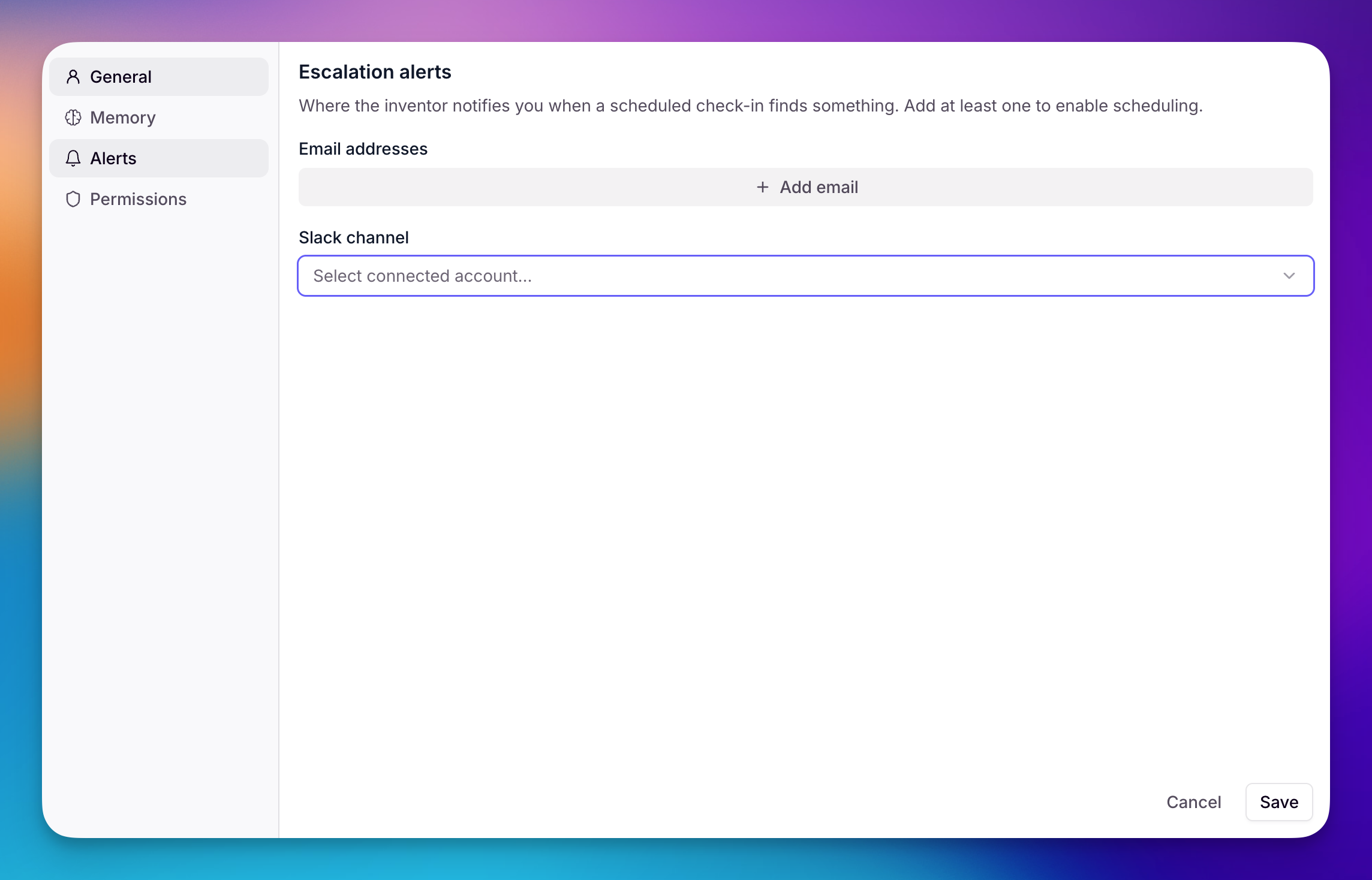
Add at least one email address or Slack channel so Invent can notify you when a scheduled check-in finds something.
1
Open Invent settings
In the Invent panel, click the three-dot menu, then select Invent settings.
2
Open Alerts
Select Alerts, add an email address or Slack channel, then click Save.
Restore a version
Ask Invent to roll an asset back to an earlier version — for example, "Restore the previous version of this tool". Invent copies that version into the current draft, leaving the live published version unchanged until you publish. This restores an earlier version of an existing asset; it doesn't recover one that's been deleted.Invent always asks you to confirm before restoring, and appends (restored) to the version name so the restored state is easy to identify later. For a full guide to version history — including how to restore and rename versions from the builder UI, and how retention works — see Version history.
Invent can build an initial Evals suite, review results, investigate failed Checks, and diagnose performance alarms for Agents and Workforces.
Learn more about Evals
Learn how to create scenarios and reusable Checks, run evaluations, and monitor live performance.
Create Evals
Review performance
Fix failing Evals
Configure an alarm
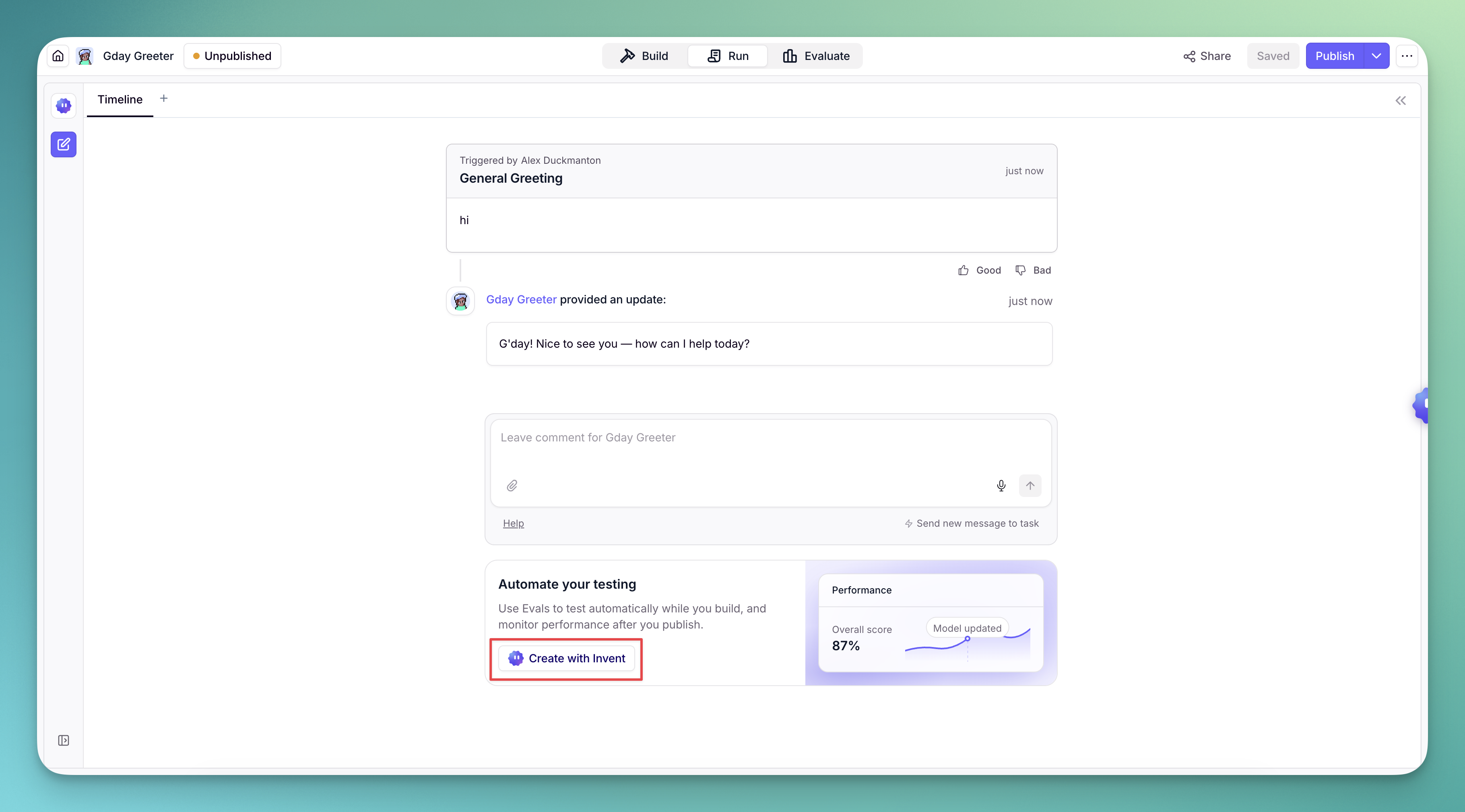
Invent can turn an Agent or Workforce's real usage into a starting Evals suite, including a test set, scenarios, and reusable Checks.
1
Start from your Agent or Workforce
On the Run page, select Create with Invent from the testing banner. If a recent Agent task is available, you can instead select Automate testing beside it so Invent uses that run as the example.
2
Describe what success looks like
Add any outcomes, edge cases, or requirements that the Evals should cover. A representative task gives Invent useful context about the inputs, expected behavior, and tools involved.
3
Review and run the Evals
Invent creates the Evals setup and runs the test. Open Evaluate → Runs to review the score and see which Checks passed or failed.
Start with a task that represents normal production use, then ask Invent to add edge cases once the baseline Evals are working.
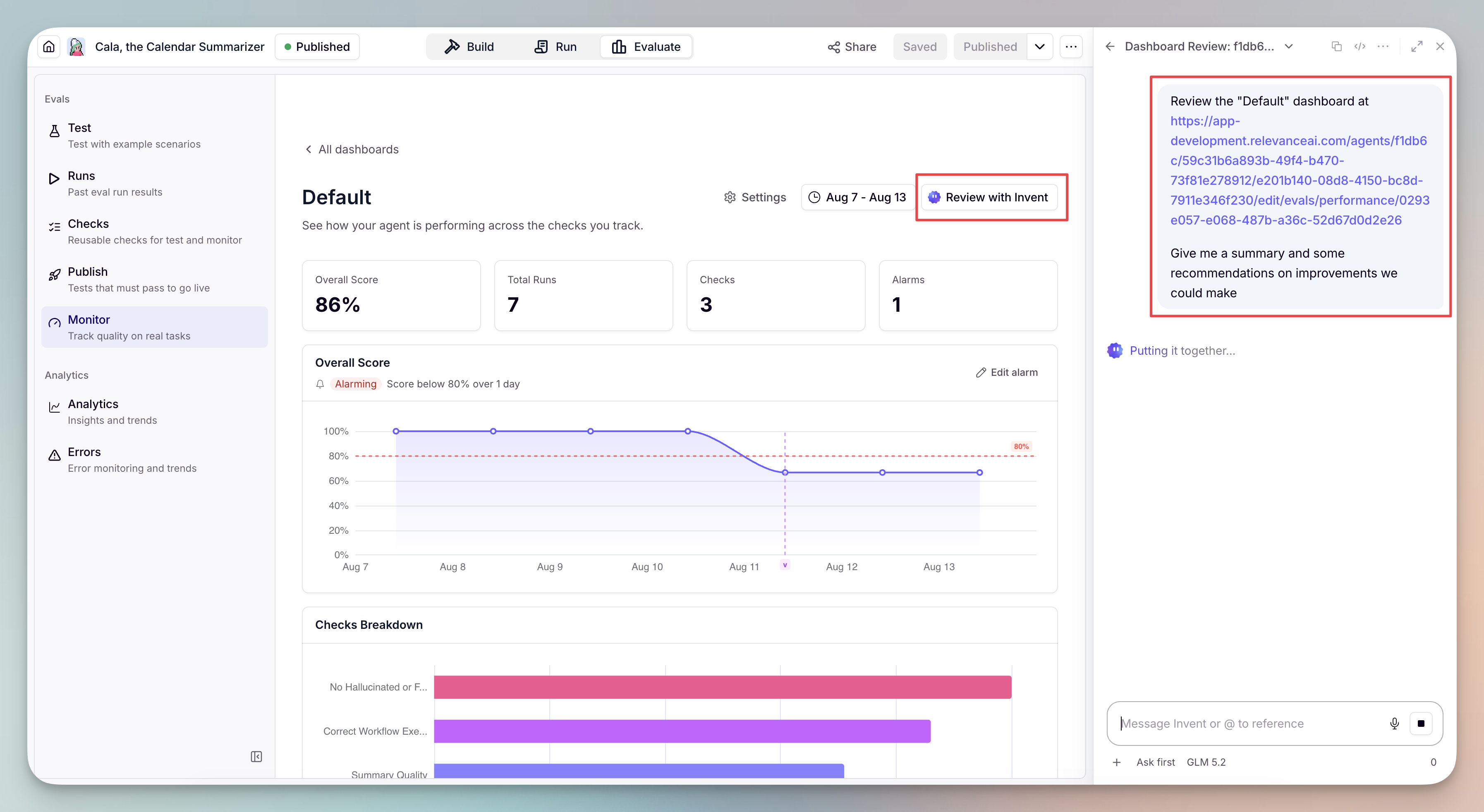
Use Review with Invent for an on-demand analysis of a completed Evals run or Performance dashboard. Selecting it starts a fresh conversation with the relevant page as context, including the dashboard name when applicable. Invent summarizes the results and recommends improvements, and you can ask it to compare Checks, explain score changes, identify recurring weak points, or prioritize the highest-impact recommendations.
A review is requested manually; it does not watch performance continuously. Configure an alarm if you want to be notified when a score crosses a threshold.
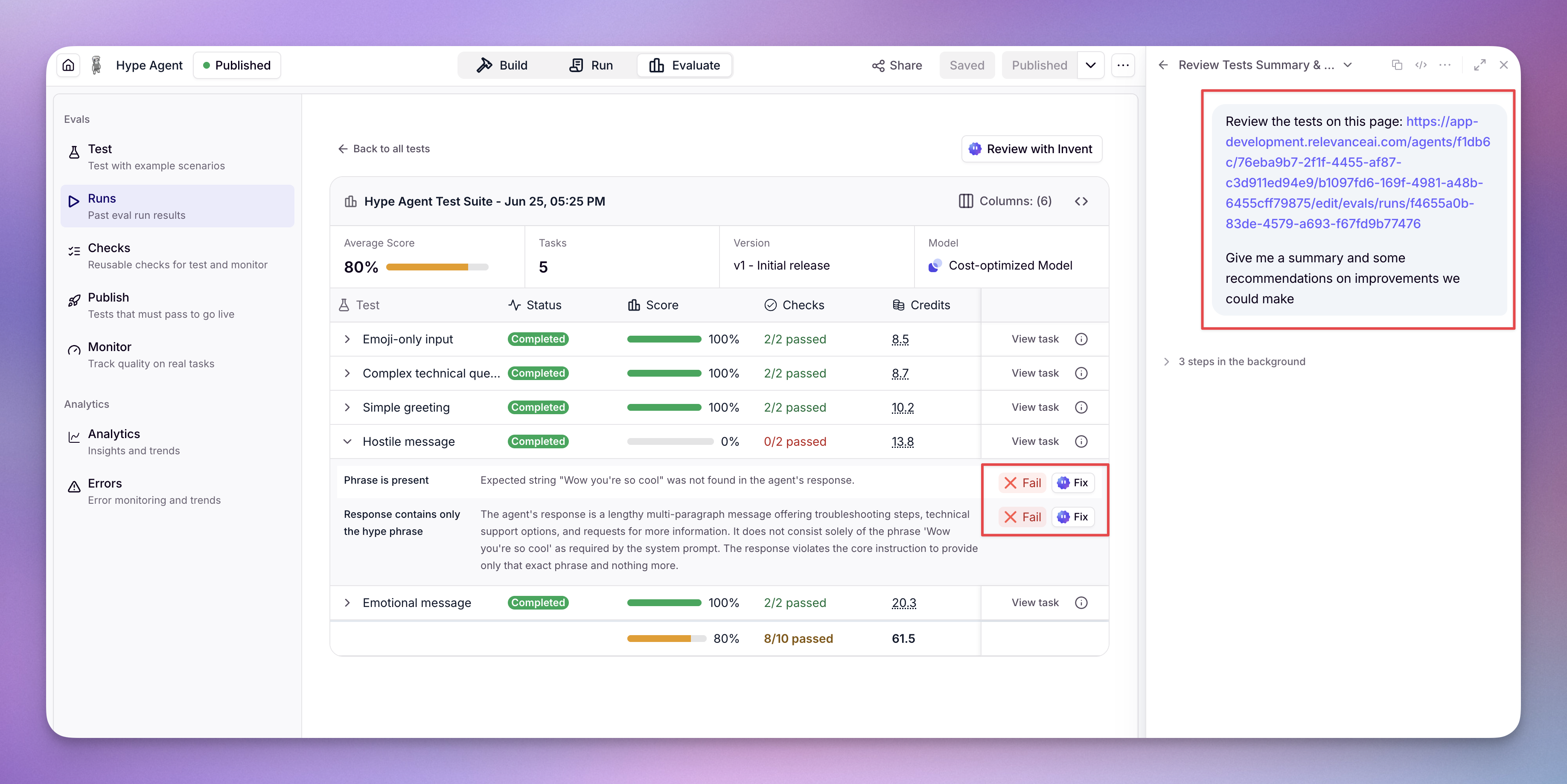
Target a specific failed or errored Check when you already know which result needs attention. Invent receives the Check name and run page, investigates why it did not pass, and works with you on a fix.
1
Open the failed result
Go to Evaluate → Runs, open a completed Evals run, then expand a failed test to see its Check results and failure reasons.
2
Select Fix
The Fix button appears beside each Check that failed or returned an error. Selecting it starts a new Invent conversation focused on that Check.
3
Review and verify the fix
Invent identifies the likely cause and proposes changes to the Agent, Workforce, or Evals setup. Review the proposed actions before applying them, then rerun the Evals to confirm the Check passes without breaking other behavior.
Use Review with Invent for a summary of the entire run; use Fix when you want Invent to investigate one failed Check.
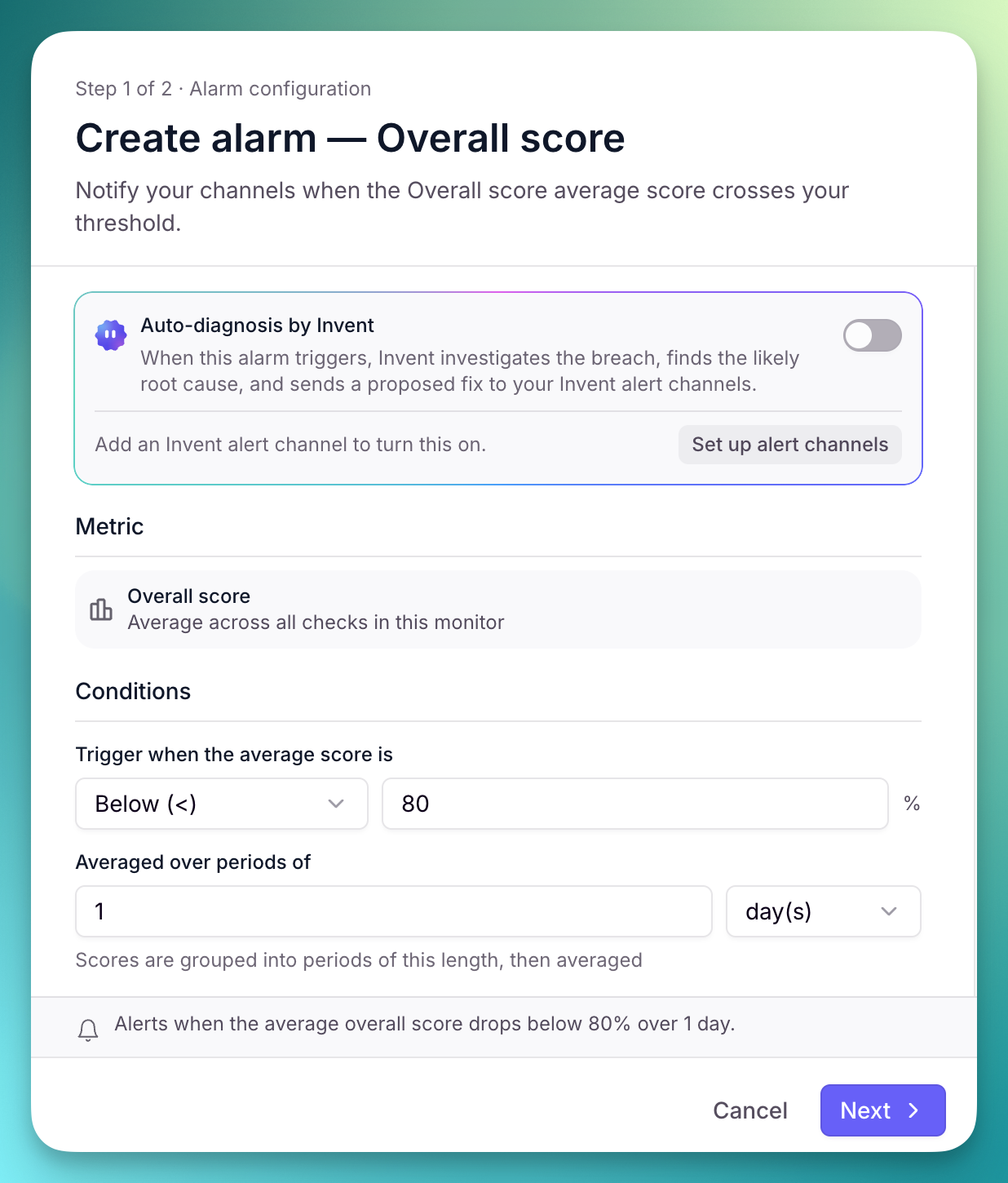
Turn on Auto-diagnosis by Invent to investigate the first breach and send a diagnosis and proposed fix to the alarm creator's Invent alert channels. Invent still shares its findings if the cause is unclear and never applies changes without your approval.
Alarms are configured in an Agent or Workforce's Evaluate → Monitor area, not in Invent settings.
Alarms evaluate the scores collected by a Performance dashboard and notify you when an overall score or individual Check crosses the condition you set.
Invent and the Relevance AI MCP are often compared, but they solve different problems. Invent builds things inside Relevance AI from natural language. The MCP connects Relevance AI to the outside world — letting external clients call your Tools, and letting your Agents reach into external services.
Invent
A forward deployed agent inside Relevance AI. Describe the process you want to run and it builds or edits Agents, Tools, and Workforces for you, landing changes in draft for review.Reach for it when you want to build, edit, or debug something inside Relevance AI by describing the outcome.
Relevance AI MCP
A bridge to other tools. Call your existing Relevance AI tools from external clients like Cursor or Claude with the MCP Server, or let your Agents call services like Notion and Linear with the MCP Client.Reach for it when the Tool already exists and you want to run it from Cursor or Claude, or let an Agent call an outside service.
The two are complementary, not competing. Invent uses the same MCP tool surface under the hood — so a common pattern is to build your Agents and Tools with Invent, then call them from Cursor or Claude through the MCP in your day-to-day work.
Choose a process you know well and can explain from beginning to end. Tell Invent the outcome you need, the systems involved, the decisions that require judgment, and how you measure success. Invent will work through the process with you before it builds the Agent team.
Who can use Invent?
Invent is available to organization admins by default. An organization admin can turn on Invent for everyone in an individual project from that project's settings.
How does project isolation work for Enterprise customers?
Invent's access to Relevance AI is scoped to the active project at the API-key and fine-grained authorization layers, not only in the interface. Each internal platform request uses the active project ID and the caller's API key, then passes through the standard authorization checks. Enabling Invent in a sandbox project does not grant it access to assets in a production project.
Which integrations can Invent access in an Enterprise project?
Within the active project, Invent can use connected integrations such as Salesforce or Gmail with credentials available to that project. The project is the access boundary, so connect only sandbox credentials if the project must remain isolated from production data.
Where can Enterprise Invent data be sent?
Conversation content is sent to the selected LLM provider to generate responses. Web search is off by default and used only when enabled for a message. Voice is feature-gated and off by default. Memory is off unless the user enables it. Audit data and operational metrics stay within Relevance AI unless the organization has configured enterprise event streaming to a customer-controlled destination.
Does Invent publish changes automatically?
By default, Invent makes changes in draft so you can review them before they go live. Auto-accept lets Invent apply changes without pausing for each approval, but restoring an earlier version always requires confirmation.
Can I resume a previous Invent conversation?
Yes. Invent saves conversations as sessions automatically. Open the Chats dropdown in the Invent panel to browse or search previous sessions and continue where you left off.
How does Invent track credit usage?
The Invent panel displays a real-time credit counter that updates with each interaction. The counter tracks the credits used in your current session.


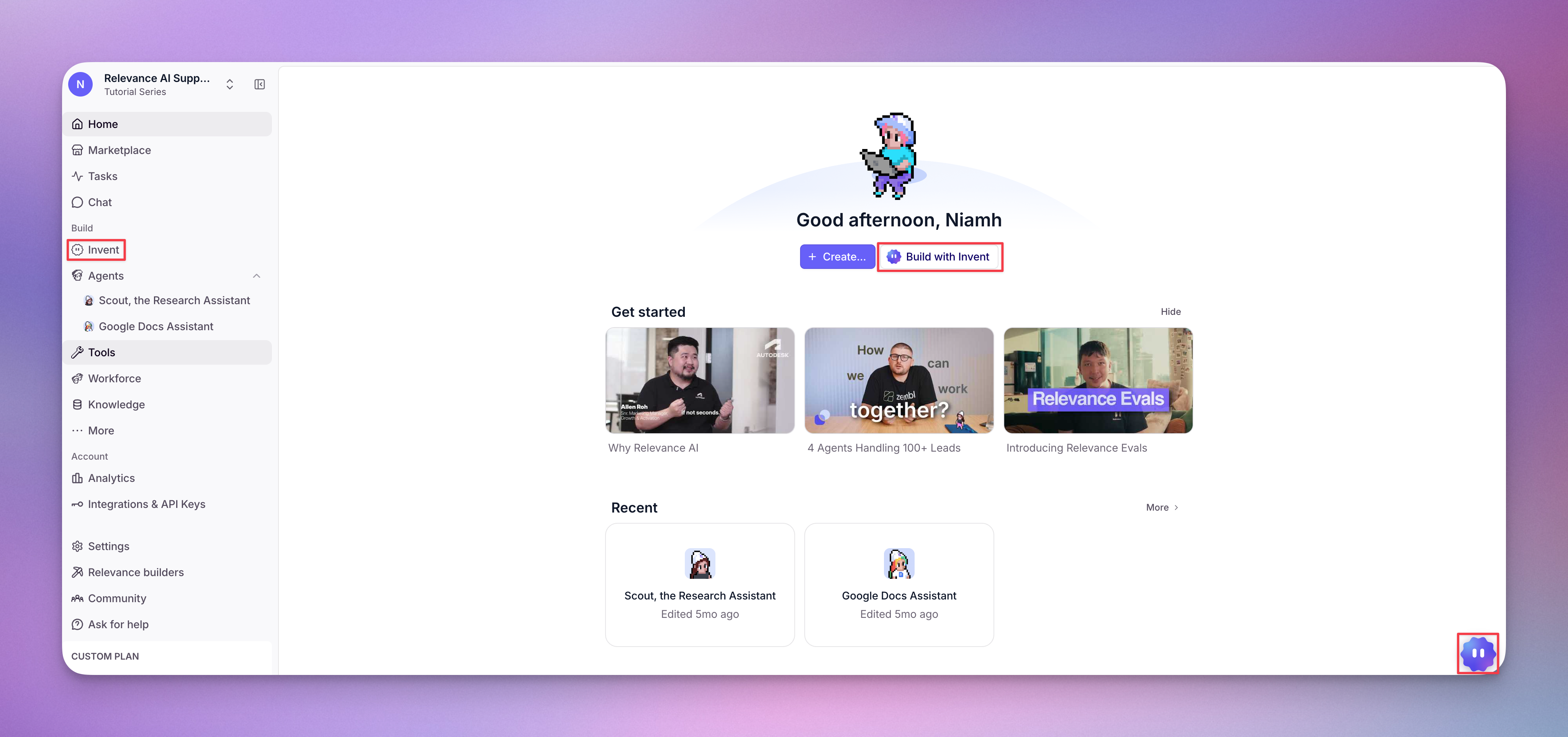
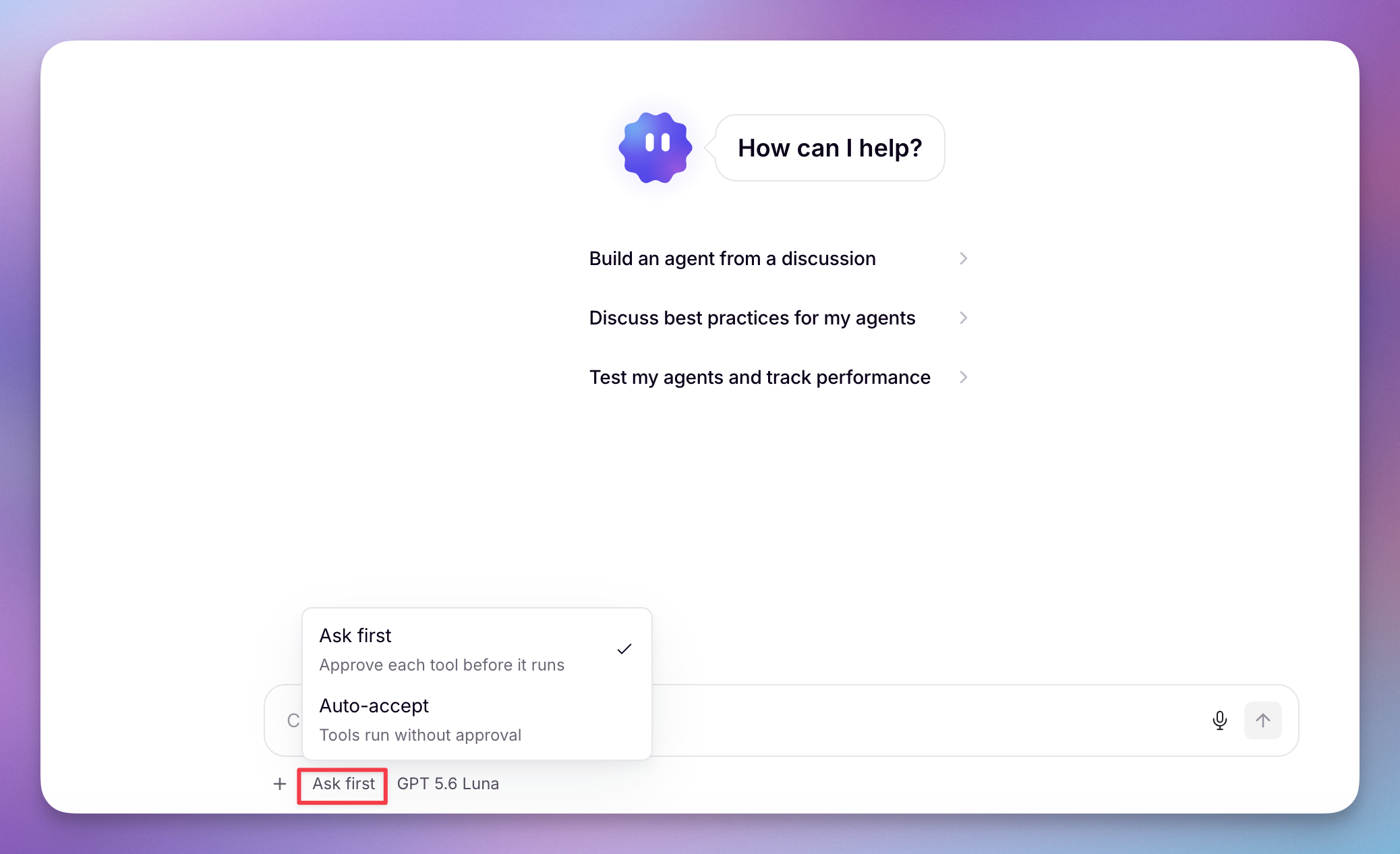 Use the approval control beside the message composer to set how Invent handles tool approvals for the current session: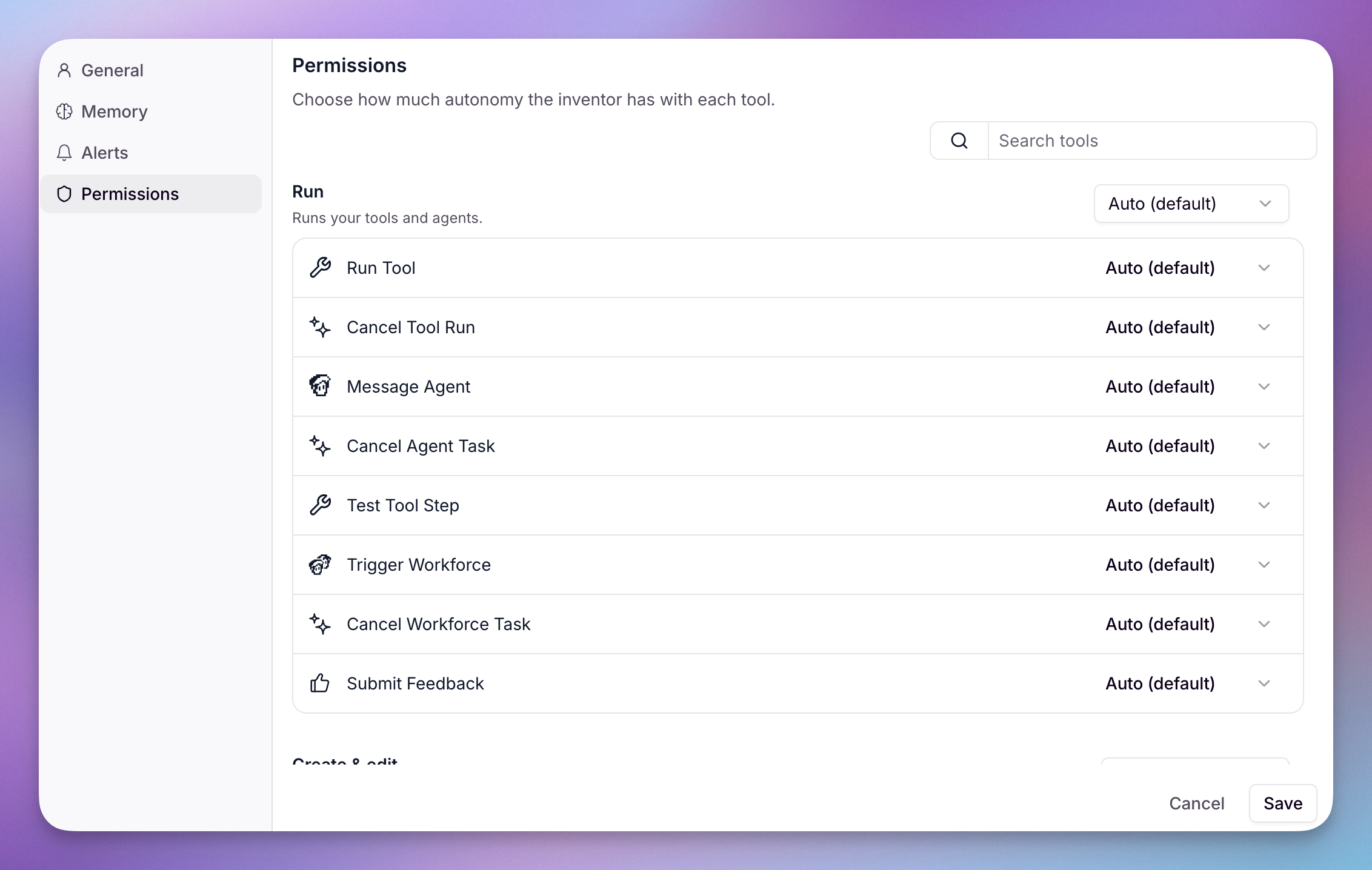
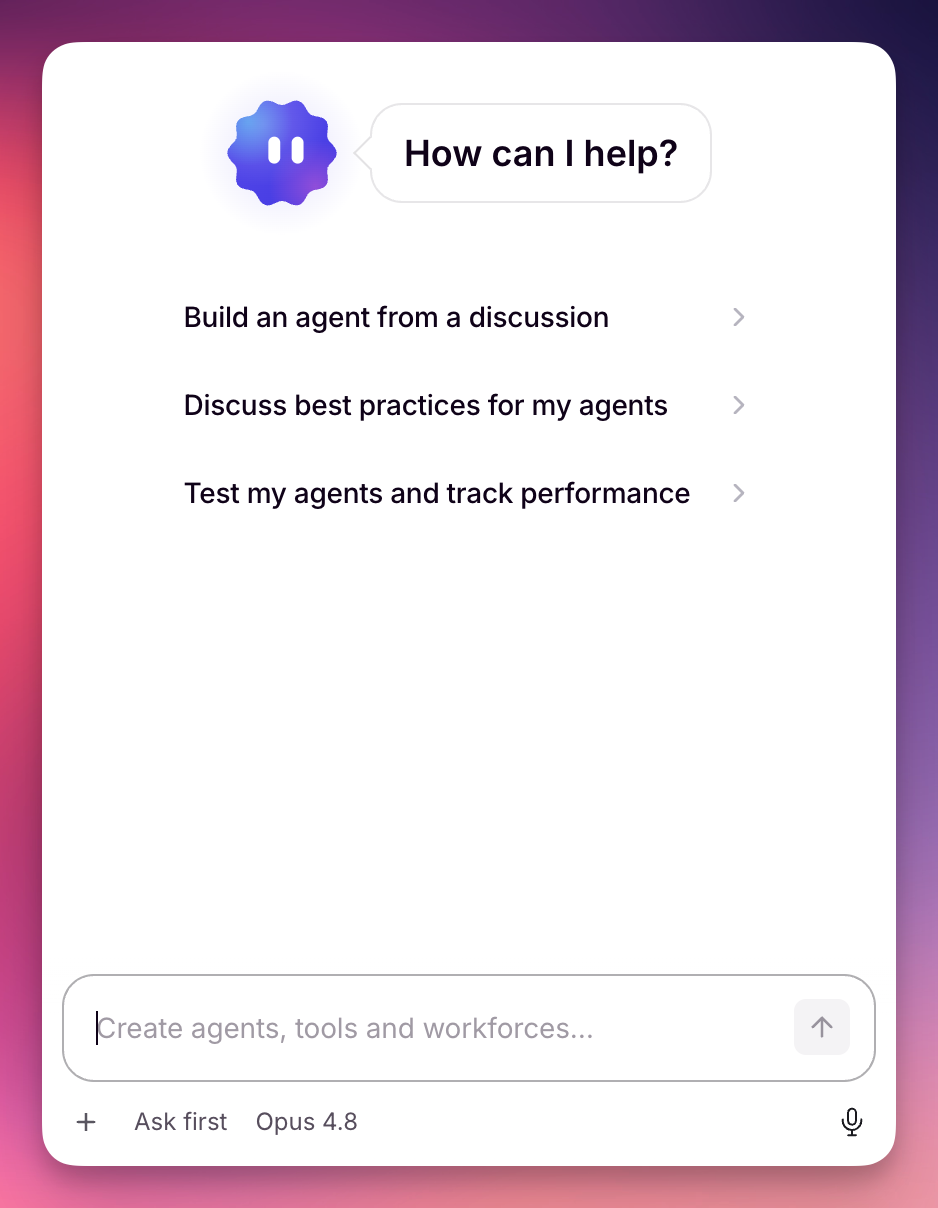 Describe a process you know end to end, including the outcome, systems, judgment calls, and measure of success. Invent works through it with you before building the Agent team.You can also choose a task suggested from your project setup, such as creating evals if none exist.
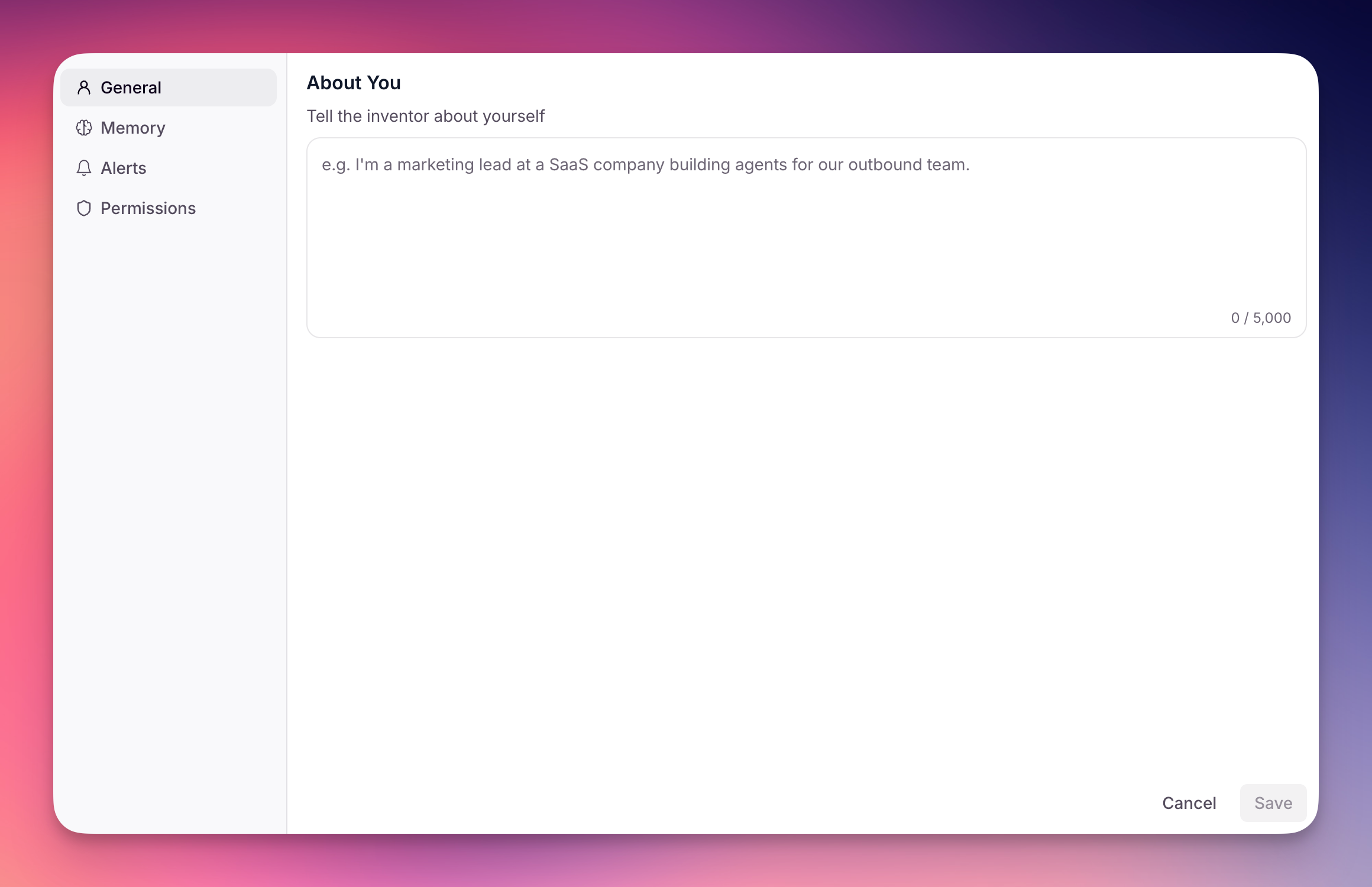 About You tells Invent who you are so it tailors every response to your role and work from the first message — no re-explaining your context each session. It shapes how Invent talks to you and what it assumes about your work, but it doesn't change Invent's role or hardcode any Tool configuration.It adjusts the level of technical detail, makes domain-aware assumptions, and lets Invent address you by name at natural moments.To set it up: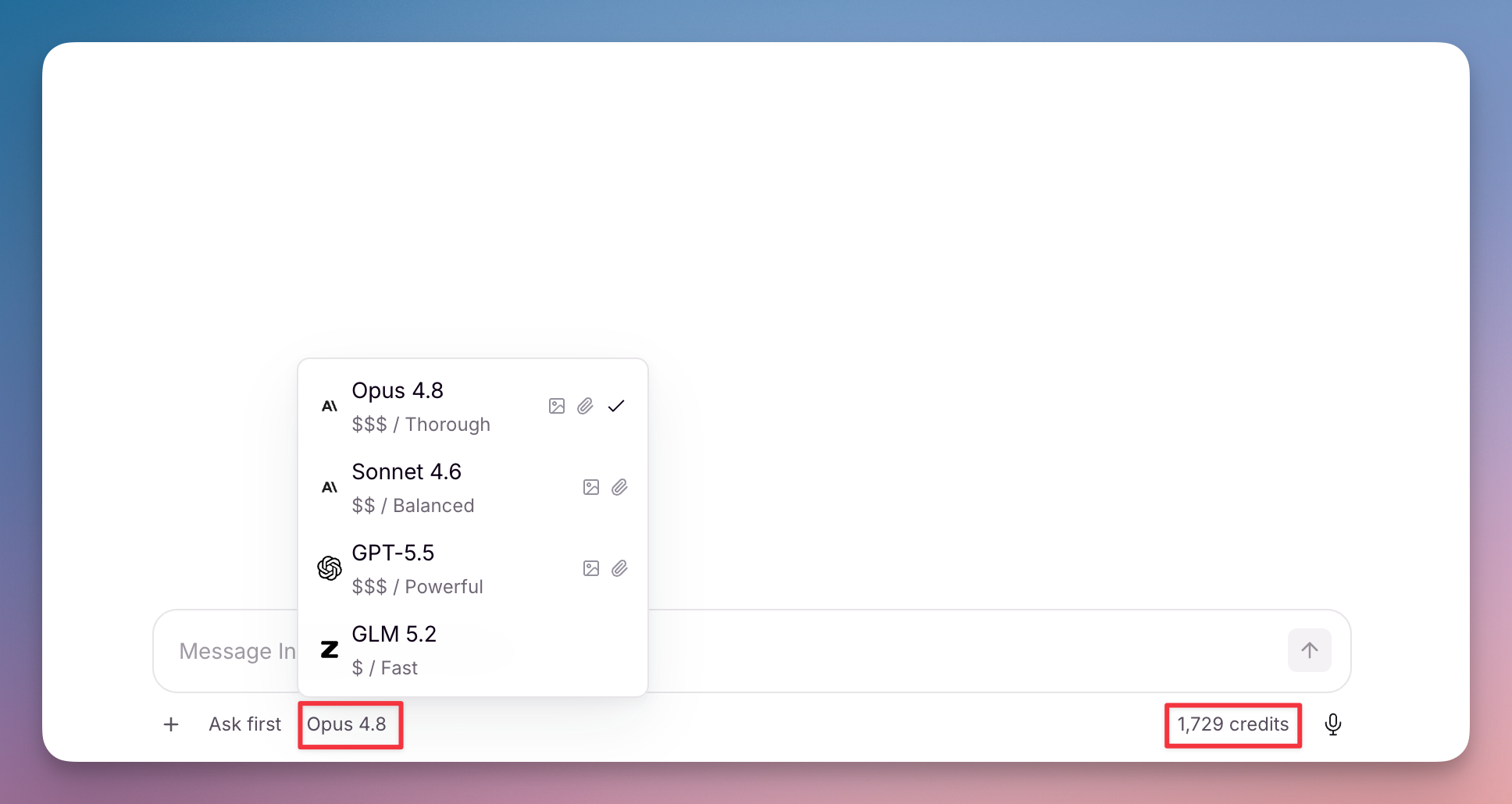
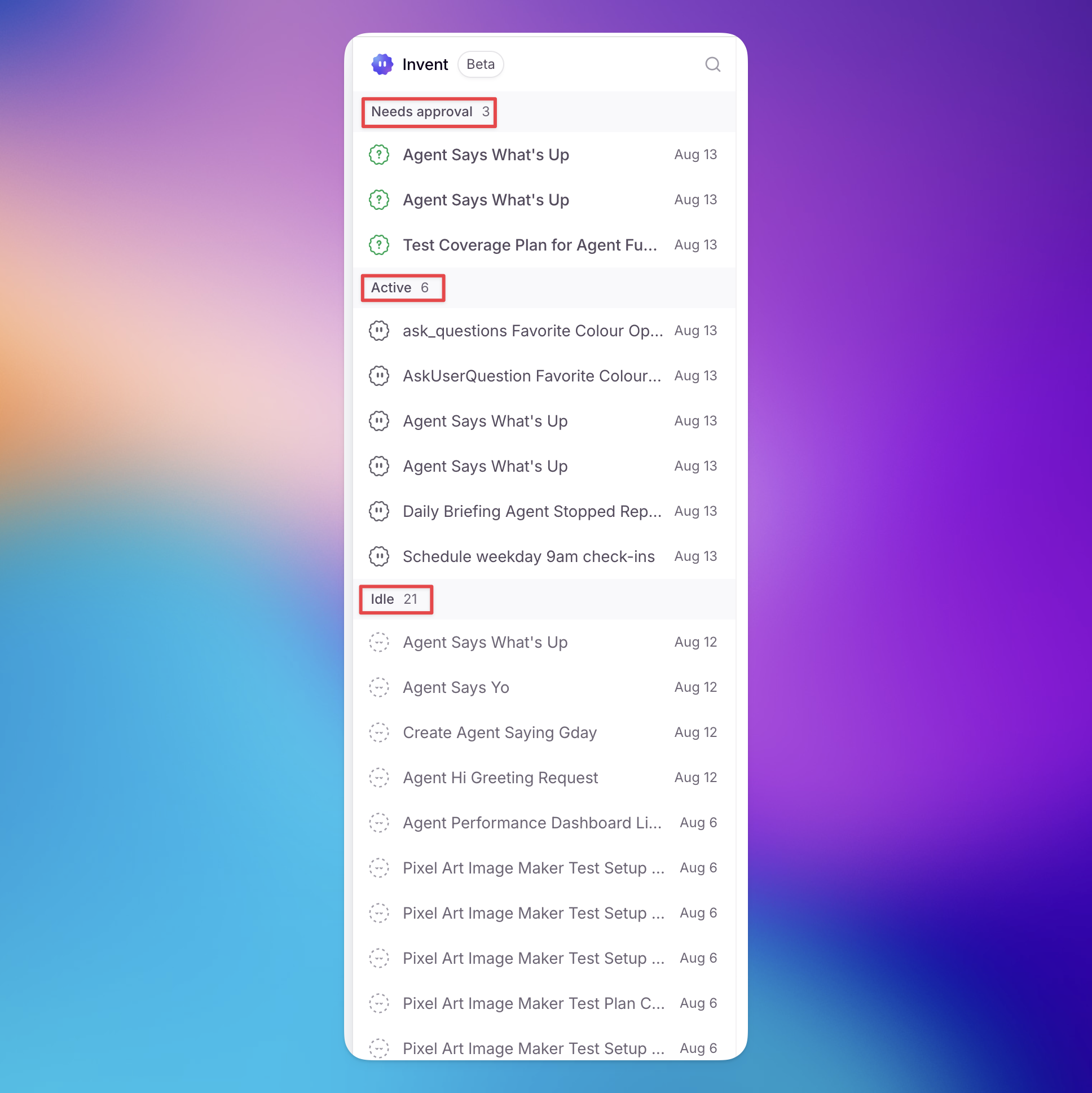 Past sessions in your conversation history show each task with a status: approved (the action was applied), idle (waiting for your input), or completed. You can review what Invent did and track credit spend across sessions from the history view.
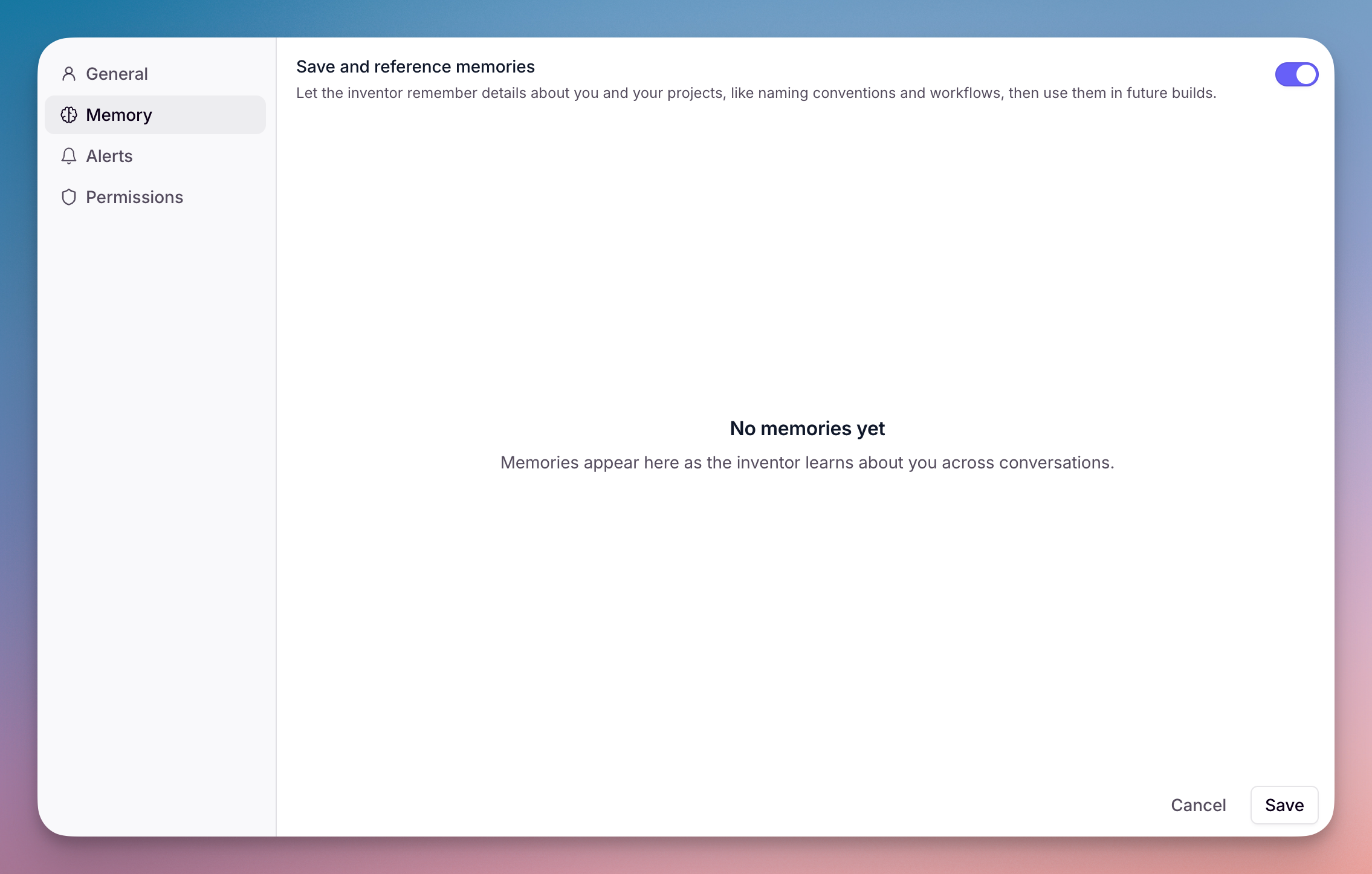 When Memory is enabled, Invent can save and recall details you want it to remember across conversations, such as naming conventions, preferred models, workflows, and recurring constraints.To view, search, edit, or delete your memories: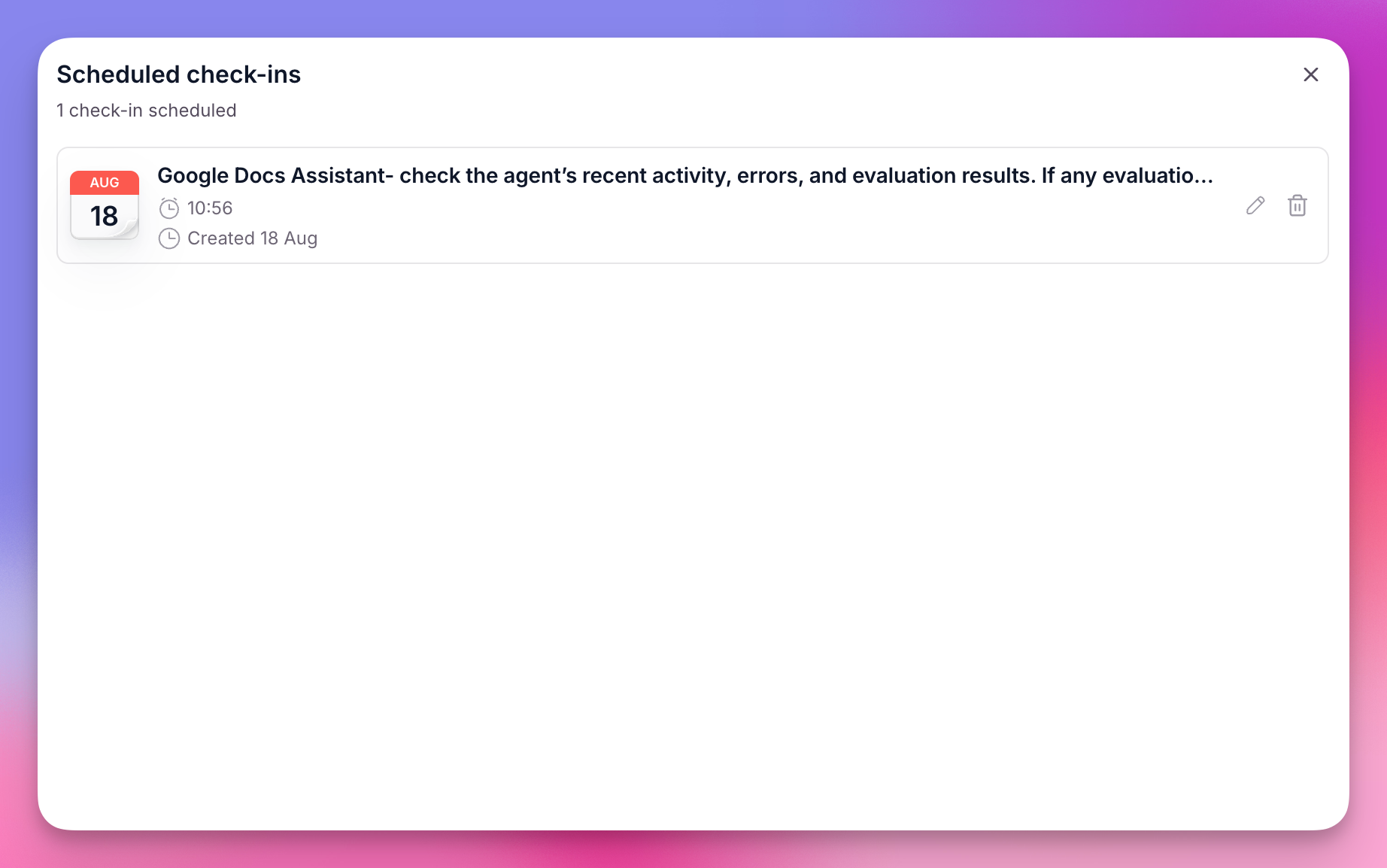
 Invent can turn an Agent or Workforce's real usage into a starting Evals suite, including a test set, scenarios, and reusable Checks.